The Spark Between

Thoughts, Projects, Happenings, Ideas
  • Home
  • About
  • SmartBox
  • LiveTrip
  • Calendar
  • Photos

HowTo: Merge Google Calendars Together

Colin M | March 4, 2008 | 2:11 am

Here’s a quick How-To on merging two Google Calendars together, since Googling with the obvious phrases did not get me very useful results.

The Problem: Merge Two (or more) Google Calendars Into One

Let’s suppose that you, like me, have more than one calendar in your Google Calendar, and decide at some point that you want to condense those into one. I was struggling to find a single click solution for this, and then just to find any solution, for quite a while. Then I stumbled on the “Import” feature, and realized that it actually solves all my problems. Here’s how it works.

The Solution: Import one Calendar into the other

Once you see how to do it, it’s a quick task to merge two calendars together. In fact, you can even use this to merge a Google calendar from one account into another.

  1. Log in to your Google Calendar account, and click on the drop-down menu next to your Source calendar. Pick “Calendar Settings” from the list:
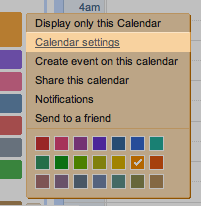
    Calendar Settings
  2. Now, scroll down to the bottom and find the Private ICAL address link. Right click on this link and save the file to your Desktop (or other handy temporary location):
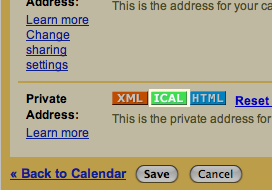
    Private ICAL Link
  3. Next, return to your calendar and click on the “Add” dropdown menu at the top of your calendar list, then click Import Calendar:
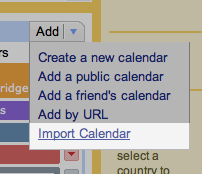
    Import Calendar
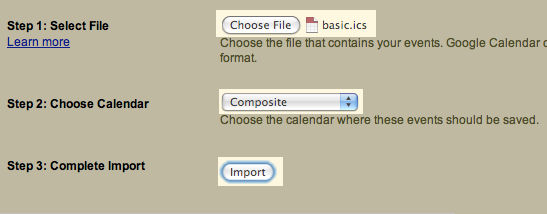
  4. Select the file you just saved from your Source calendar, and choose the Destination calendar you want to import into:
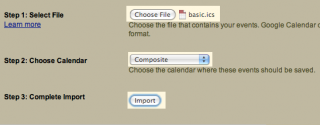
    Import Form
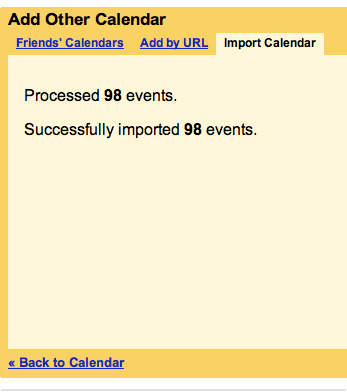
    Then click Import, and you will soon be greeted with the cheery success message:
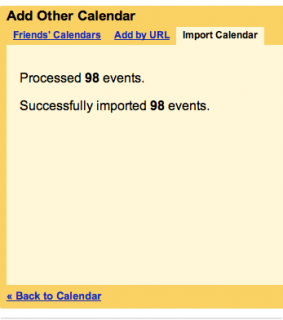
    Successful Import
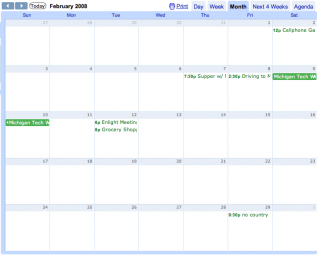
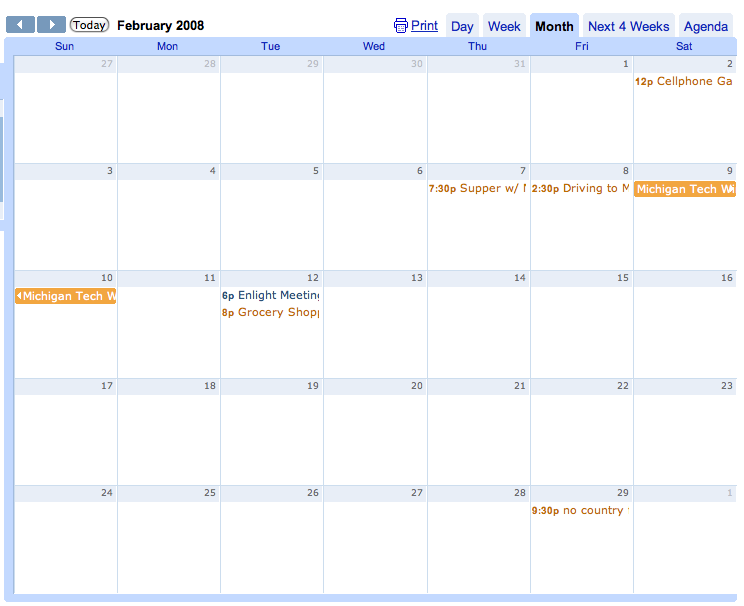
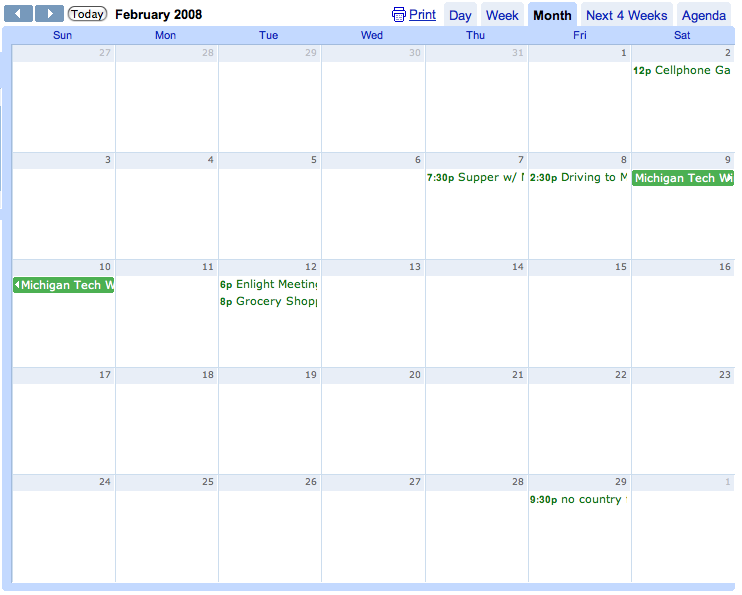
  5. And that’s it! Here’s a before-and-after of me combining two calendars to show that it works. (Take a look at Tues, February 12, for example.):
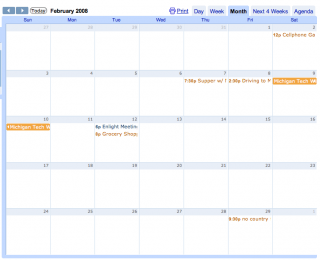
    BeforeAfter
Categories
Howto
Comments rss
Comments rss
Trackback
Trackback

« Enjoying Free Books Thaw »

74 Responses to “HowTo: Merge Google Calendars Together”

« Older Comments
  1. Diane says:
    October 2, 2009 at 12:46 pm

    Sorry, but didn’t get the happy message, instead ZERO ITEMS IMPORTED. Tried several times as per instructions.

  2. Karen says:
    October 2, 2009 at 3:16 pm

    YOU ROCK!!!!!!!!

  3. Syb says:
    October 3, 2009 at 3:01 pm

    I have tried to post this question on the Help Forum in Google Calendar but have no replies. Just wonder if the experts here know how to have the words of the events of the calendar appear as “wrapped text” when printed in 2-weeks view or monthly view. I only have the two first words of each item and sometimes I cannot guess what’s afterwards. I’m sure other people must have raised this question before, as it is such an important feature in printing google calendar.

    Thanks for your help,
    Syb.

  4. Susanne says:
    October 4, 2009 at 11:33 pm

    Error says “unable to process file” Ideas?

  5. Lazarus Parker says:
    October 8, 2009 at 10:01 pm

    Thank you if have any more tips like this please continue the good wk. I’m having trouble understanding google voice once again Thanks Lp3

  6. Rob says:
    October 9, 2009 at 4:29 am

    Thank you so much for taking the time to share this information in such an understandable way. You answered my questions before I had the chance to ask them!

  7. Kalvin says:
    October 18, 2009 at 9:40 am

    Ok, I have a second google calendar for mutual events for a friend and myself, and I want that second calendar to appear in my iphone. My first calendar events save in my iphone calendar, but the events in the second calendar don’t sync with my phone. They do sync with my personal calendar in google. I want this to by a live sync between the two calendar so when she updates events in the mutual calendar, they sync with iphone calendar. I have my main google calendar synched via exchange.

  8. Anonymous says:
    November 4, 2009 at 9:46 am

    Thank you!

  9. Jackie says:
    November 30, 2009 at 8:39 pm

    I’m having lots of trouble doing this…I’m getting the following error:

    Processed 540 events.

    Successfully imported 16 events.

    Failed to import events: Could not upload your events because you do not have sufficient access on the target calendar..

    I have one calendar under one gmail address & one calendar under another gmail address & I am the originator of them both but it’s not working. :( Please help ~ any suggestions would be appreciated! TIA

  10. Anonymous says:
    December 10, 2009 at 10:33 am

    THANK YOU VERY MUCH!!! These clear instructions were exactly what I needed.

  11. James says:
    December 11, 2009 at 2:17 pm

    How do I maintain the integrated calendar in sync with the separate ones that comprise it? I.e., one Master calendar, then various sub-calendars that serve as components of the master calendar.

  12. Colin M says:
    December 12, 2009 at 4:23 pm

    @Kalvin: You can sync multiple calendars to your iPod Touch or iPhone using the Google Sync application. Find more details (including setup directions and how to choose which calendars to sync) at Google’s site on syncing your iPhone with Google Sync

    @James: This method is unfortunately a one-time only process. It is the equivalent of copying & pasting all of your calendar items from the source calendar to the destination calendar, rather than setting up a master calendar / sub-calendar type of relationship. You may be able to get the effect you want with some 3rd party tools (e.g., you could add all of your private ICAL feeds to some 3rd party calendar app, and then publish the combined calendar from that app back to the web, and then add it as a shared calendar in Google Calendar.) However, I am not familiar with which applications may actually have this support. Good luck, and please let us know if you find a solution that works!

  13. David says:
    December 17, 2009 at 2:32 pm

    I too only get a ” 0 items imported ” .
    Any ideas ?
    Thanks

  14. Pietro says:
    January 3, 2010 at 5:29 pm

    Can you now if exist an automatic setting to merge more calendar into my calendar?
    The procedure import describe don’t import the change after the importing.
    My regards
    Pietro.

  15. Marcos says:
    January 11, 2010 at 11:15 pm

    AWESOME!!! THANK YOUUU!!

  16. Sil says:
    January 13, 2010 at 5:12 am

    Worked like a charm. Thanks

  17. Bard says:
    January 16, 2010 at 10:52 pm

    you rule, seriously. smart guy great tip

  18. James says:
    January 29, 2010 at 4:39 am

    I also get
    Failed to import events: Could not upload your events because you do not have sufficient access on the target calendar.

    I find myself wanting to shout at google “it’s my ***ing calendar, of course I have access”. Yet another example of how appauling google calendar is – meaningless unhelpful error messages. Getting data into google calendar feels like some kind of “dark art”. Shame it is nowhere near as reliable or easy to use as google mail.

  19. Carsten says:
    February 1, 2010 at 9:25 am

    @James, I’ve got the same problem.

  20. Saurav says:
    February 9, 2010 at 4:23 am

    Great Tip !!
    I’ve been trying to figure out this for months!.

    Thanks

  21. Phil says:
    February 13, 2010 at 11:45 pm

    same problem as Jackie…

  22. Henrique Dias says:
    February 19, 2010 at 6:50 am

    Good Job! Works fine!

  23. Andrew Knowles says:
    February 26, 2010 at 9:23 am

    Very useful – thanks!

  24. Erika says:
    March 8, 2010 at 6:55 pm

    Is there a way to sync the different google calendars, but keep them in their separate colors? I followed your instructions (thanks!) and synced my three calendars, but now they’re all in the same color and it’s hard to tell apart my work calendar vs., for example, my appointments calendar.

    Any advice? Thanks!

« Older Comments

Leave a Reply

Click here to cancel reply.

Calendar

March 2010
S M T W T F S
« Jan «-»  
 123456
78910111213
14151617181920
21222324252627
28293031  

Random Quote

We cannot live only for ourselves. A thousand fibers connect us with our fellow men.
Herman Melville

Blogroll

  • Angela
  • Ashley
  • Jared
  • Jeni
  • Jon
  • Paul
  • Scott

Archives

Meta

  • Log in
  • Entries RSS
  • Comments RSS
  • WordPress.org
rss Comments rss valid xhtml 1.1 design by jide powered by Wordpress get firefox